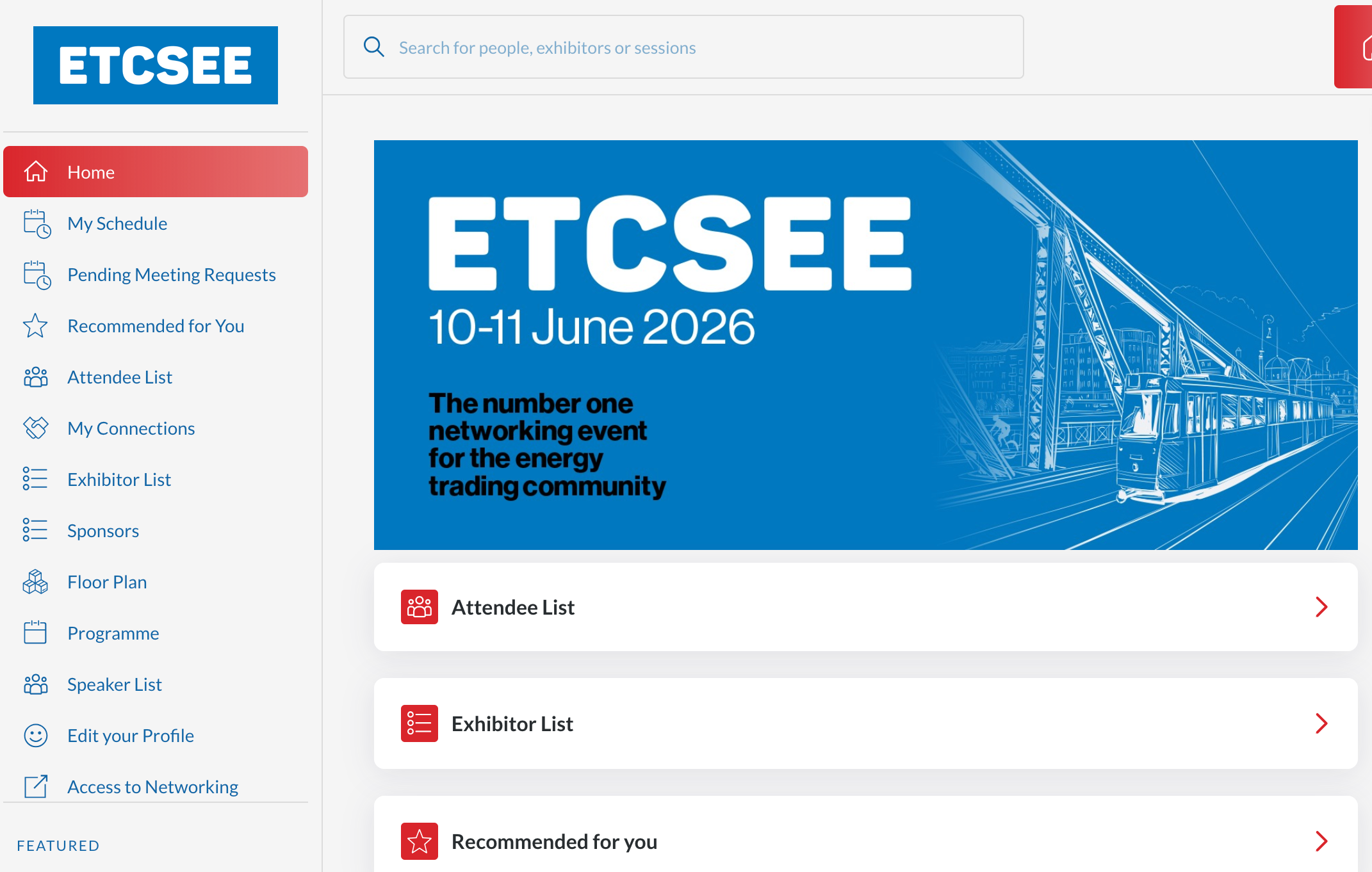
Find below our tips to help you navigate the Event App.
♦ LOG IN & PROFILE SET UP
How can I activate my account?
You have been sent an automatic activation email from "ETCSEE 2026 <noreply@app.energytradingcsee.com>" with instructions on how to log in and the registration ID you need to activate your account.
If you have not received it, insert your email address and click on the “Request a reminder” link at the bottom of the screen where you are asked to add your registration ID.
If your e-mail address is not recognised, let us know at info@energytradingcsee.com.
Please note you only need to activate your account once, on desktop or mobile, by creating your password. After this step, you will be able to log in anytime with your e-mail address and password.
How can I confirm my profile (onboarding process)?
When you first log in, you will be asked to confirm or adjust your registration (and additional) information to help the platform generate recommendations - this is your onboarding process. Click “Next” when you are ready to move on and confirm the next questions. This step is crucial for your event experience, so that the app can generate the right recommendations according to your profile and preferences - don't skip it!
Please note this is not available for attendees who opted out of networking (see below how to opt back in).
I have opted-out of networking during registration - can I opt back in?
If you have opted out of networking, you are not visible in the ETCSEE App and don’t have access to networking, making connections or arranging meetings. If you would like to access the networking features, view the Exhibitor, Speaker & Attendee lists, and become visible to other attendees (this includes sharing your name, job title and company within the App), send us an email to info@energytradingcsee.com.
Contact Details Sharing
Confirm how you would like your contact information to appear on the platform. The platform will default to "Private" profile and you can edit your selection at any time by editing your profile.
To amend your profile status: on desktop, go to Edit Profile, scroll down to the Contact Details section and choose your profile status in the Visibility dropdown; on mobile, click on your profile icon (top left-hand side), click on Contact Details and select your option under Visibility.
These are the Visibility options available:
- Private (Default): As default, your profile is set as "Private". This means that no other user of this platform will be able to view your contact details. When visiting Exhibitor pages, the exhibitor will be aware that you visited their page, but will not have access to your contact details (e-mail address and phone number).
- Connections Only: Setting yourself as a "Connections Only" profile means that ONLY those you are connected with on this platform will be able to view your contact details. Once a connection has been completed, the connected profile will be able to view your details (e-mail address and phone number). When visiting Exhibitor pages, the exhibitor will know that you have visited them, but no contact details will be made available to them unless you are connected (or become connected later) with one of the exhibitor representatives.
- Public: As a "Public" profile, your contact details will be available to all users within this platform, whether they are a connection or not. This means that all users will have access to this information (e-mail address and phone number), and when visiting Exhibitor pages they will be aware that you have done so and will be able to gain your information.
♦ NETWORK
How can I network with Attendees and Speakers?
On the Attendee and Speaker lists you can find people you want to meet, connect with or do business with in Budapest.
- You can "Show interest" in profiles you find interesting, which will prompt a message to that person saying you are interested in connecting with them; your profile will also show up in their "Interested in you" list. If they 'show interest' in you back, you will become connected.
- You can send attendees a direct message only after you are connected with them.
- You can send a meeting request to someone and, if they accept the request, you will become connected and you can start a chat as well.
- You will be notified via email if people 'show interest' in you, if they reply to your messages or if they accept your meeting requests.
- You can use the Filters available in the Attendee or Speaker lists to narrow down your search based on country, company name, job title.
- If you send a message or a meeting request to other attendees, you will be able to find your contacts and manage them on "My Connections" (desktop - menu item; mobile - homepage item).
How can I network with Exhibitors?
- In the Exhibitor list, you can find the companies you want to meet in Budapest, including Exhibitors and Sponsors.
- You can add them to your list by clicking on the "Show Interest" button on each exhibitor's listing. They will become available under the "My Interested List".
- You can send them a message or a meeting request. You will be notified via email if they reply to your message or accept your meeting request.
- You can use the Filters to narrow down your search based on country, company name and organisation core area of focus.
How can I send messages?
You can send messages to exhibitors or attendees only after you are connected with them (see above how you can become connected with someone).
Click on their profile and then click on "Chat" to open the chat pop-up box.
You will be notified once attendees or exhibitors reply to your messages.
Where do I find the messages I send and receive?
To find all the messages you send and receive:
On desktop: go to the right-hand sidebar or check the chat pop-up box that will show up.
On mobile: click on "Chats" (at the bottom).
How can I send meeting requests?
You can send meeting requests to exhibitors (companies) or attendees.
Click on the "Request a meeting" button on their listing or open their profile and fill in the "Request a meeting" box, select a time, date and location, include a message, and send the request.
Please note there's a limit of 30 pending meetings you can have, after which you won't be able to send more requests; once your meetings are accepted or declined, you'll be able to send more requests.
You will be notified once attendees or exhibitors reply to your request.
You will be able to find all the requests you sent and manage them on "My Schedule" (desktop - menu item) or "Schedule" (mobile - bottom bar).
Where do I find the meeting requests I sent?
You will be able to find all the meeting requests you sent and manage them on "My Schedule" (desktop - menu item) or "Schedule" (mobile - bottom bar).
Where do I find the meeting requests I receive?
You will be able to find all the requests you receive and manage them on "My Schedule" (desktop - menu item) or "Schedule" (mobile - bottom bar).
Click on the request to Decline or Accept it; you can write a note to the person who invited you when you decline or accept their request. You can also reschedule the request, proposing a new date / time for the meeting.
Will I receive a reminder before my meetings start?
Yes, reminder e-mails and desktop notifications are sent 10 minutes before meetings start.
Can I sync my scheduled meetings with my native calendar?
Yes, it's possible to sync the personal agenda you create in the app with your native calendar on your computer or mobile device.
On desktop: click on "My Schedule" and click on the "Sync to my calendar" button on the top right-hand side, then select your type of calendar; this will prompt a message asking you to open your native calendar, after which you can add your meetings (and sessions) to your calendar.
On mobile: click on More (at the bottom), scroll all the way down and click on 'My Calendar Sync' and then on 'Synchronise' and follow the steps on your device to add your meetings (and sessions) to your calendar.
Meeting tips:
- We recommend that you only accept the meeting requests you want to attend and that you cancel a meeting if in the meantime something comes up and you can't attend (find the meeting in your Schedule and click on cancel)
- Attendees are more likely to accept meeting request in the afternoon (after lunch or to wrap up the day), so we recommend that you send your invites during this time
♦ PROGRAMME
How can I add sessions to my agenda?
If you want to add a session to your agenda, click on the "Add to your Agenda" button on the session listing or open the session by clicking on its title and clicking on the "Add to your Agenda" button.
Where can I find my agenda?
You will be able to find all the sessions you added to your diary on "My Schedule" (desktop - menu) or "Schedule" (mobile - bottom bar).
Can I sync my agenda with my native calendar?
Yes, it's possible to sync the personal event agenda you create in the app with your native calendar on your computer or mobile device.
On desktop: click on the "My Schedule" menu item and click on the "Sync to my calendar" button on the top right-hand side, then select your type of calendar; this will prompt a message asking you to open your native calendar, after which you can add your sessions (and meetings) to your calendar.
On mobile: click on More (at the bottom), scroll all the way down and click on 'My Calendar Sync' and then on 'Synchronise' and follow the steps on your device to add your meetings (and sessions) to your calendar.
♦ FLOOR PLAN
Where can I see the floor plan?
You can find the floor plan if you click on the "Floor Plan" menu item.
♦ NOTIFICATIONS
How do I manage my notifications?
On desktop: you will be able to check your notifications if you click on the bell icon on the top right-hand side; you can manage which notifications you receive if you click on your photo or the person icon on the top right-hand side and click on "Account Settings".
On mobile: you will be able to check your notifications if you click on the bell icon at the bottom of your screen; you can manage the notifications you receive on your phone / mobile device settings.
♦ PROFILE
How can I edit my Profile?
On desktop: click on your photo or the person icon on the top right-hand side and click on "Edit Profile"; make your edits and click on "Update Profile" once you're done.
On mobile: click on your photo or the person icon on the top left-hand side; make your edits and click on Save (top right-hand side) after you have made the updates.
Where can I change my Password?
On desktop: click on your photo or the person icon on the top right-hand side and click on "Account Settings"; click on the pencil icon next to Password to create a new password and click on "Save Password".
On mobile: the only option to change your password on the mobile app is to sign out and click on "Email me a password reset link" after you have inserted your e-mail address.
Can I manage my calendar availability?
Yes, you can make some time slots or days unavailable for meetings via the web platform: click on "Edit Profile" and on "Manage my Availability" and "Edit Availability", make your adjustments and click on "Save Changes".
Can I export my contacts?
Yes, you can export a list of all your connections (anyone you’ve connected with through the platform or had a meeting with) into a .csv file, only via the web platform. Go to “Edit Profile” and click on “Export"; then click on "Export" again under "Export Connections". Please remember that, due to GDPR, email and/or phone numbers will be shared only for the users who decided to share their contact details.
How can I fine-tune the Recommendations I see in this app?
On desktop: click on your photo or the person icon on the top right-hand side and click on "Edit Profile" and check if all your interests selections are up to date or if you need to update them or fill them in; don't forget to click on "Update Profile" if you make any changes.
On mobile: click on your photo or the person icon on the top left-hand side, which will open your Profile, and then click on "Change Profile Attributes" to access and edit your choices; you can click on Skip at the top right if you want to skip a specific question
Additionally, your actions in the app, including the attendees and exhibitors you interact with (or "Skip"), and the sessions you add to your schedule, will also be taken into account by the AI-powered technology to show you custom recommendations.
Can I delete my profile?
If you no longer want to access the app and wish to delete your data from the platform:
- on desktop: click on your photo or the person icon on the top right-hand side, click on "Account Settings", scroll down to "Delete Account" and click on "Delete my account".
- on mobile: Click on "More" (at the bottom), scroll down and click on "Delete Account".
Please note that, by deleting your account, all the contacts and information saved during your app usage will be deleted as well.
♦ I need more information, what can I do?
Pre-event: send us an e-mail to info@energytradingcsee.com (during event days there can be a delay in replying to emails).
In Budapest: go to the Registration desk.
)
)
)
)
)